RapidValue's MCP server
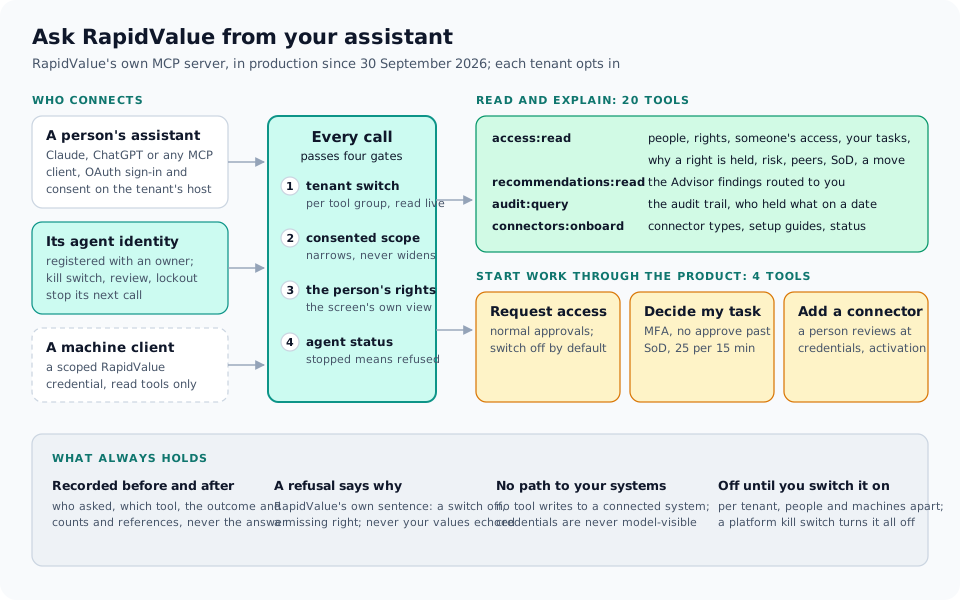
RapidValue has its own MCP server. A person connects the AI assistant they already use (Claude, ChatGPT or any MCP client with OAuth sign-in) and asks RapidValue questions in their own words: which findings need me this week, why does this person hold that right, who held it on 1 March. The assistant can also start work, but only through the route the product itself uses: an access request goes through the normal approvals, a decision goes through the inbox's own checks.
This page is about RapidValue's own tools. The MCP gateway, which sits in front of your MCP servers and decides every call your agents make, is described in Deciding every agent call.
Where it runs
The MCP server is in production since 30 September 2026. It is off until a tenant administrator switches it on, under Environment, API access. People and machine clients are switched on separately, and RapidValue can block MCP for a tenant or for the whole platform.
Connecting an assistant
- An administrator allows the assistant. Either by its return addresses or by the URL of the client metadata document its vendor publishes. Allowing it also registers it as an AI agent identity with a purpose, a lifecycle driver and an owner. See Every assistant is a governed AI agent.
- The person adds RapidValue to their assistant and points it at their tenant.
- The person signs in and consents on the tenant's own sign-in page, and sees exactly which scopes the assistant asks for. Disconnecting it later ends its access right away; the person finds their assistants under Connected assistants in the profile menu. The code that completes this sign-in works once: a failed exchange spends it, and a code presented a second time also revokes the access the first use gave. A refusal at this step is shown as a page, not as raw JSON.
The server speaks the current MCP protocol revision (2026-07-28) and the earlier handshakes (2025-06-18 and 2025-11-25).
Four gates on every call
| Gate | What it checks |
|---|---|
| The tenant's switch | MCP is on for this tenant, for people or machine clients, and the switch of the tool's group is on. Read live on every call, never from a cache. |
| The consented scope | The token carries the scope the tool needs. Scopes narrow what the person can do; they never add to it. |
| The person's rights | The assistant sees what RapidValue would show this person on screen, through the same services and scope rules. Hidden and missing get the same answer. |
| The agent's status | The assistant is its own agent identity. Its kill switch, lockout or retirement refuses the next call, token exchange and refresh, with a message that it was stopped in RapidValue. |
A tool the actor may not use is not listed, and calling it by a guessed name is refused the same way.
The tools
Read and explain (20 tools)
| Scope | Tools | What they answer |
|---|---|---|
access:read |
find_people, find_entitlements, get_person_access, list_entitlement_holders, explain_grant, list_system_accounts, list_my_open_tasks |
Who someone is, what they hold, who holds a right, why they hold it, which accounts a system has, and your own open tasks |
access:read |
explain_risk, compare_with_peers, list_sod_conflicts, preview_move |
A risk score explained, a comparison with peers, segregation-of-duties conflicts, and what a department move would change. The preview runs the real engine and rolls everything back. |
recommendations:read |
list_advisor_findings, get_advisor_finding |
The findings routed to you, and one finding with its evidence |
audit:query |
search_audit, access_as_of |
The audit trail on structured fields, and who held what on a past date. People only, for a person who may read the audit trail. |
access:request |
preview_access_request |
What a request would do, before it is filed |
tasks:decide |
get_task |
One of your own open tasks |
connectors:onboard |
list_connector_types, get_connector_setup_guide, get_onboarding_status |
The connector catalog, a setup guide in English, and where an onboarding stands, including the last connection test as a result and a named reason |
All tools are named rapidvalue.<name>. A result is a fixed set of named fields,
signed off per tool, so a new column in the product never becomes visible to a
model by itself. Free text that people or source systems wrote stays out.
Start work, through the product's own route (4 tools)
| Tool | Scope and switch | What it does, and the limits |
|---|---|---|
request_access |
access:request; its switch is off by default |
Files an ordinary access request for you or someone you may request for. It follows the normal approval chain and records that it came through an assistant. |
decide_task |
tasks:decide; its switch is off by default |
Approves or rejects your own open tasks through the inbox's route. The connection must have been approved with a second factor, it never approves past a segregation-of-duties warning (rejecting is allowed), and it takes at most 25 decisions per 15 minutes per person. |
start_connector_onboarding, propose_onboarding_step |
connectors:onboard, the connector-configuration permission; its switch is off by default |
Starts a connector onboarding and fills its steps. See below. |
These four are people only: a machine client never lists or calls them, whatever its scopes. Each tells the client it changes state.
Setting up a connector from your assistant
The assistant can fill the wizard's steps (role, name, authentication method, connectivity, base URL, sync strategy, objects, mapping, account types and rules, schedule), always with one of the form's own options. A tenant chooses how a person reviews that work:
- At checkpoints (the default). Each step the assistant fills is applied to the draft at once and the next form comes back. A person reviews what the assistant filled at the credentials step and again at activation, which needs a tick "I reviewed the steps my assistant filled".
- Every step. Each step waits as a proposal until a person approves it in the wizard.
In both modes the credentials, provisioning and activation are a person's own steps. The assistant never sees a secret or a sample record from your system, never sees the system's error text (only a named reason), and cannot continue past a failed connection test. A draft connector never syncs, provisions or writes until a person activates it.
What always holds
- Every call is recorded before and after it runs: who asked, through which assistant, which tool, the outcome, and how many records it returned with stable references. Never the answer itself.
- A refusal says why in RapidValue's own sentence (a switch is off, a department does not exist), so the assistant can tell the person what to fix. It never echoes a value the assistant sent. Any other error stays "Tool execution failed".
- No tool writes to a connected system, and credentials, tokens and vault references are never visible to a model.
- The assistant never gets more than the person. It adds a name and a stop to every call, never a right.
Machine clients
An agent of your own can connect with a scoped RapidValue API credential instead of a person's sign-in. It gets the read tools its scopes allow, never the audit tools, never the tools that start work, and it is governed like any other agent: an owner, a review and a kill switch.
Known edges, published rather than discovered
- The autonomy tier is recorded but not enforced on this endpoint. A person's assistant is bounded by the person and by the switches above.
- There are no draft tools yet to prepare a review decision or a role change for a person to confirm. They are planned.
- Calls the assistant makes elsewhere are not seen. RapidValue records the calls to its own server; for your own MCP servers, see the gateway.
Further reading: